Linux Setup
Applies to Linux, AndroidWritten for Titanium SDK 13.4.0 and later
Install Node.js
Titanium requires Node.js 22.19.0 or 24.x.
Important
Node 26 is only compatible with Titanium SDK 14 or newer. Node 24 works with every SDK.
curl -o- https://raw.githubusercontent.com/nvm-sh/nvm/v0.41.0/install.sh | bashReopen your terminal, then:
nvm install 24curl -fsSL https://deb.nodesource.com/setup_24.x | sudo -E bash -
sudo apt install -y nodejsDebian and Ubuntu ship a Node too old for Titanium, so this adds NodeSource.
node -vInstall a JDK
Titanium requires JDK 17, 21, or 25. JDK 26 is only compatible with Titanium SDK 14 or newer. Any distribution works. The commands below install Temurin or your distribution's OpenJDK.
sudo apt install openjdk-21-jdksudo dnf install java-21-openjdk-develjavac -versionSet JAVA_HOME
Gradle and the Titanium SDK locate the JDK through JAVA_HOME. Most installers
leave it unset.
JAVA_HOME=$(dirname "$(dirname "$(readlink -f "$(command -v javac)")")")
echo "export JAVA_HOME=$JAVA_HOME" >> ~/.bashrc
$JAVA_HOME/bin/javac -versionJAVA_HOME=$(dirname "$(dirname "$(readlink -f "$(command -v javac)")")")
echo "export JAVA_HOME=$JAVA_HOME" >> ~/.zshrc
$JAVA_HOME/bin/javac -versionset -gx JAVA_HOME (dirname (dirname (readlink -f (command -v javac))))
echo "set -gx JAVA_HOME $JAVA_HOME" >> ~/.config/fish/config.fish
$JAVA_HOME/bin/javac -versionThe path differs by distribution (/usr/lib/jvm/java-21-openjdk-amd64 on
Debian and Ubuntu, /usr/lib/jvm/java-21-openjdk on Fedora), so this reads it
off javac rather than naming one.
Install the Titanium CLI
npm install -g titaniumpnpm add -g titaniumPrefix that with sudo if you installed Node with apt or the installer: their
global directory is owned by root.
ti -vThe command is also available as titanium:
titanium -vInstall the Titanium SDK
The CLI is the tool you run; the SDK is what builds your app. You can have several SDKs installed at once.
ti sdk installWith no version, that installs the latest stable release and makes it the default. It is a few hundred megabytes.
ti sdk list
ti sdk list --releases
Install the Android SDK
Titanium needs four pieces of it:
| Component | Why | Supported by SDK 13.4 |
|---|---|---|
| SDK Platform | Compiles against it | API 23 to 36 |
| Build Tools | Packages the APK | 30.0.2 to 35.x |
| Platform Tools | Provides adb |
33.x |
| Emulator | Runs a virtual device | Any current version |
Android Studio is the straightforward way to get them. The command-line tools are smaller and are what you want on a build server.
Install Android Studio and let the setup wizard run. It installs a platform, build tools and platform tools.
Then open Settings → Languages & Frameworks → Android SDK and check that SDK Tools lists Android SDK Build-Tools, Android SDK Platform-Tools and Android Emulator.
Download the command-line tools from the
Android Studio downloads page
and unzip them to <sdk>/cmdline-tools/latest. The tools expect that exact
layout and fail confusingly without it.
sdkmanager "platforms;android-36" "build-tools;35.0.0" "platform-tools" "emulator"Note
Google has deprecated sdkmanager in favour of android sdk install platforms/android-36 build-tools/35.0.0. Both work. sdkmanager still ships
in the command-line tools and is what most CI scripts call.
Set the Android SDK path
ti setup androidti setup android finds the SDK and writes the path to the CLI's config, so no
environment variable has to be right.
If you would rather set one, Titanium checks ANDROID_SDK_ROOT and
ANDROID_SDK, then looks for adb on your PATH, then scans the usual install
directories.
Important
ANDROID_HOME is not one of them. Most Android documentation tells you to set
it; Titanium's app build does not read it.
Versions newer than Titanium supports
Google ships API levels and build tools faster than the SDK adds support, so a current Android Studio usually produces warnings:
!  Android API Android 17 (android-37) is too new and may or may not work with
   Titanium SDK 13.4.0.
   The maximum supported Android API level by Titanium SDK 13.4.0 is API level 36.
Titanium builds anyway. Leave them until a build fails, then pin a version it knows:
ti config android.buildTools.selectedVersion 35.0.0Keep the SDK somewhere your user owns. ~/Android/Sdk is the conventional
location and the one Android Studio uses. Under /opt or /usr/local, every
sdkmanager run needs sudo and the files it writes end up owned by root.
Set up an emulator
The emulator needs KVM. Without it, it either refuses to start or runs too slowly to use.
egrep -c '(vmx|svm)' /proc/cpuinfo0 means virtualisation is not enabled in the BIOS. Anything higher is fine.
sudo apt install qemu-kvm
sudo usermod -aG kvm $USER
Log out and back in for the group change to take effect.
Create a virtual device with Android Studio's Device Manager, or with
avdmanager from the command-line tools.
A physical device over USB is faster than any emulator. It needs USB debugging turned on in Developer options, and a udev rule so your user can reach it.
Verify Titanium is Ready
ti info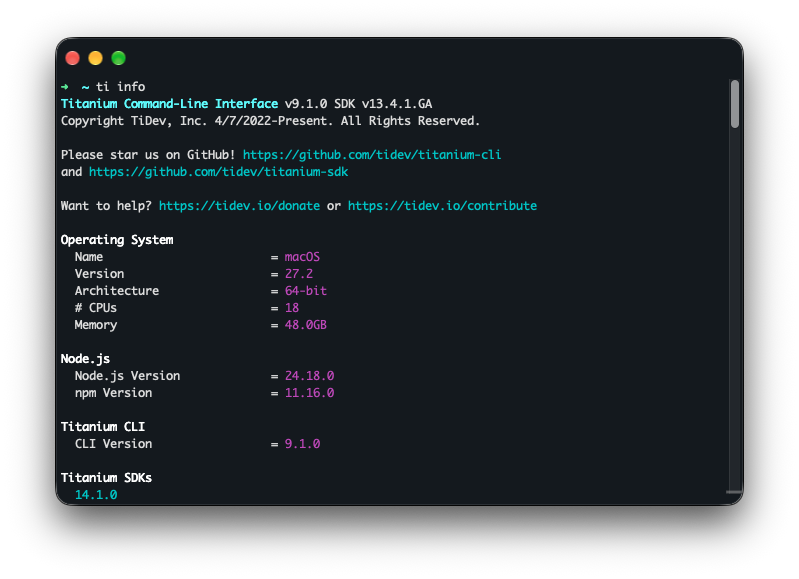
ti info lists everything it detected and any issues it found. A working setup
reports none.
Warnings are common and usually harmless: a component newer than the SDK
supports produces one, and so does a missing NDK. When something is wrong,
ti info names it and says what to do.
Troubleshooting
ti info cannot find the Android SDK
Run ti setup android and give it the path. If you set ANDROID_HOME and
expected it to work, use ANDROID_SDK_ROOT instead.
sdkmanager fails with a Java error
Check javac -version reports 17, 21 or 25, then check the tools are at
<sdk>/cmdline-tools/latest/bin/sdkmanager. Unzipping straight into the SDK
root leaves them at <sdk>/cmdline-tools/bin, and the error does not mention
the layout.
The emulator starts and then exits
KVM. Check /dev/kvm exists and your user can read it:
ls -l /dev/kvmIf the group is kvm and you are not in it, the usermod above has not taken
effect yet.
Permission errors under the SDK directory
The SDK was installed as root:
sudo chown -R $USER: ~/Android/SdkNext
Your first app creates a project and builds it.