You are reading 12.7.1. See this page in 13.4.1.
Titanium.UI.TextArea
Extends Titanium.UI.ViewTitanium.Proxy
A multiline text field that supports editing and scrolling.
| Android | iOS |
|---|---|
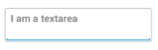 |
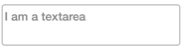 |
Use the Titanium.UI.createTextArea method or <TextArea> Alloy element to create a text area.
click event in iOS
In iOS 11+, click event in text area is not fired due to changes from apple.
Use touchstart event instead of click event.
Examples
Basic Text Area with Customizations
This example creates a highly customized text area.
var win = Ti.UI.createWindow();
var textArea = Ti.UI.createTextArea({
  borderWidth: 2,
  borderColor: '#bbb',
  borderRadius: 5,
  color: '#888',
  font: {fontSize:20, fontWeight:'bold'},
  keyboardType: Ti.UI.KEYBOARD_NUMBER_PAD,
  returnKeyType: Ti.UI.RETURNKEY_GO,
  textAlign: 'left',
  value: 'I am a textarea',
  top: 60,
  width: 300, height : 70
});
win.add(textArea);
win.open();
Text Area with Custom Keyboard Toolbar (iOS)
On iOS, a configurable toolbar can be displayed above the virtual keyboard. Toolbars can be used with both text areas and text fields. See <Titanium.UI.iOS.Toolbar> for more information.
This code excerpt creates a text area with a toolbar:
Example using a custom keyboard toolbar:
var send = Ti.UI.createButton({
    style : Ti.UI.iOS.SystemButtonStyle.DONE,
    title : 'Send'
});

var camera = Ti.UI.createButton({
    systemButton : Ti.UI.iOS.SystemButton.CAMERA
});

var cancel = Ti.UI.createButton({
    systemButton : Ti.UI.iOS.SystemButton.CANCEL
});

var flexSpace = Ti.UI.createButton({
    systemButton : Ti.UI.iOS.SystemButton.FLEXIBLE_SPACE
});

var textarea = Ti.UI.createTextArea({
    borderColor : '#000',
    color : '#000',
    keyboardToolbar : [cancel, flexSpace, camera, flexSpace, send],
    keyboardToolbarColor : '#999',
    keyboardToolbarHeight : 40,
    value : 'Focus to see keyboard with toolbar',
    top : 10,
    width : 300, height : 120
});
Alloy XML Markup
Previous basic text area with customizations example as an Alloy view.
<Alloy>
    <Window id="win">
        <TextArea id="textArea"
            borderWidth="2" borderColor="#bbb" borderRadius="5"
            color="#888" textAlign="left" value="I am a textarea"
            top="60" width="300" height="70" />
    </Window>
</Alloy>
Properties 110
Inherited from Titanium.UI.View
Boolean value to remove the long press notification for the device's accessibility service.
Default: true
Inherited from Titanium.UI.View
Whether the view should be "hidden" from (i.e., ignored by) the accessibility service.
Default: false
Inherited from Titanium.UI.View
Briefly describes what performing an action (such as a click) on the view will do.
Default: null
Inherited from Titanium.UI.View
A succint label identifying the view for the device's accessibility service.
Inherited from Titanium.UI.View
A string describing the value (if any) of the view for the device's accessibility service.
Inherited from Titanium.UI.View
Coordinate of the view about which to pivot an animation.
Inherited from Titanium.UI.View
Current position of the view during an animation.
Inherited from Titanium.Proxy
The name of the API that this proxy corresponds to.
Hint text attributed string.
The attributed hint text by the text area. If set, avoid setting common attributes
in text area, such as hintText, color and font, as unexpected behaviors may result.
This has no effect when used with hintType Ti.UI.HINT_TYPE_ANIMATED.
Prior to Release 3.6.0, assign this property an object from the <Titanium.UI.iOS.AttributedString> class.
Since Appcelerator CLI 4.1.0 (Alloy 1.7.0), for Alloy, you can use an <AttributedHintText>
element inside a <TextField> element and set the text property as node text:
<Alloy>
  <Window>
      <TextField>
        <AttributedHintText>
            Alloy is great!
        </AttributedHintText>
      </TextField>
  </Window>
</Alloy>
Then set attributes in the TSS file:
"AttributedString" : {
  attributes: [
    {
      type: Ti.UI.ATTRIBUTE_FOREGROUND_COLOR,
      value: 'red',
      range: [0, 5]
    },
    {
      type: Ti.UI.ATTRIBUTE_UNDERLINES_STYLE,
      value: Ti.UI.ATTRIBUTE_UNDERLINE_STYLE_SINGLE,
      range: [9, 5]
    }
  ]
}TextArea attributed string.
The underlying attributed string drawn by the textArea. If set, avoid setting common attributes
in textArea, such as value, color and font, as unexpected behaviors may result.
Prior to Release 3.6.0, assign this property an object from the <Titanium.UI.iOS.AttributedString> class.
Since Appcelerator CLI 4.1.0 (Alloy 1.7.0), for Alloy, you can use an <AttributedString>
element inside a <TextArea> element and set the text property as node text:
<Alloy>
  <Window>
      <TextArea>
        <AttributedString>
            Alloy is great!
        </AttributedString>
      </TextArea>
  </Window>
</Alloy>
Then set attributes in the TSS file:
"AttributedString" : {
  attributes: [
    {
      type: Ti.UI.ATTRIBUTE_FOREGROUND_COLOR,
      value: 'red',
      range: [0, 5]
    },
    {
      type: Ti.UI.ATTRIBUTE_UNDERLINES_STYLE,
      value: Ti.UI.ATTRIBUTE_UNDERLINE_STYLE_SINGLE,
      range: [9, 5]
    }
  ]
}
autocapitalization
NumberDetermines how text is capitalized during typing.
Default: <Titanium.UI.TEXT_AUTOCAPITALIZATION_NONE>
autocorrect
BooleanDetermines whether to automatically correct text entered into this text area.
Set to true to enable automatic spelling correction. On iOS 9+, this can be used to disable QuickType suggestions.
If this property is not explicitly defined, it behaves as though it were set to true.
On Android and iOS, the returned default value is undefined, but behave as if the value is true.
Sets the autofill type for the text area.
This sets the hint or content type to aid the autofill feature of iOS and Android to function.
Accepts 32 constants
- AUTOFILL_TYPE_ADDRESS
- AUTOFILL_TYPE_ADDRESS_CITY
- AUTOFILL_TYPE_ADDRESS_CITY_STATE
- AUTOFILL_TYPE_ADDRESS_LINE1
- AUTOFILL_TYPE_ADDRESS_LINE2
- AUTOFILL_TYPE_ADDRESS_STATE
- AUTOFILL_TYPE_CARD_EXPIRATION_DATE
- AUTOFILL_TYPE_CARD_EXPIRATION_DAY
- AUTOFILL_TYPE_CARD_EXPIRATION_MONTH
- AUTOFILL_TYPE_CARD_EXPIRATION_YEAR
- AUTOFILL_TYPE_CARD_NUMBER
- AUTOFILL_TYPE_CARD_SECURITY_CODE
- AUTOFILL_TYPE_COUNTRY_NAME
- AUTOFILL_TYPE_EMAIL
- AUTOFILL_TYPE_FAMILY_NAME
- AUTOFILL_TYPE_GIVEN_NAME
- AUTOFILL_TYPE_JOB_TITLE
- AUTOFILL_TYPE_LOCATION
- AUTOFILL_TYPE_MIDDLE_NAME
- AUTOFILL_TYPE_NAME
- AUTOFILL_TYPE_NAME_PREFIX
- AUTOFILL_TYPE_NAME_SUFFIX
- AUTOFILL_TYPE_NEW_PASSWORD
- AUTOFILL_TYPE_NICKNAME
- AUTOFILL_TYPE_ONE_TIME_CODE
- AUTOFILL_TYPE_ORGANIZATION_NAME
- AUTOFILL_TYPE_PASSWORD
- AUTOFILL_TYPE_PHONE
- AUTOFILL_TYPE_POSTAL_CODE
- AUTOFILL_TYPE_SUBLOCALITY
- AUTOFILL_TYPE_URL
- AUTOFILL_TYPE_USERNAME
Default: undefined
Automatically convert text to clickable links.
iOS supports an additional autolink type, AUTOLINK_CALENDAR.
Multiple autolink values can be combined with a bitwise OR. For example:
textArea.autoLink = Ti.UI.AUTOLINK_MAP_ADDRESSES|Ti.UI.AUTOLINK_PHONE_NUMBERS;Prior to Release 3.0, this field used platform-specific constants. These are now
deprecated in favor of the AUTOLINK constants.
On Android, the LINKIFY legacy constants are defined in Titanium.UI.Android.
On iOS, the AUTODETECT legacy constants are defined in Titanium.UI.iOS.
Accepts 12 constants
Default: <Titanium.UI.AUTOLINK_NONE>
backgroundColor
String | Titanium.UI.ColorInherited from Titanium.UI.View
Background color of the view, as a color name or hex triplet.
Inherited from Titanium.UI.View
Disabled background color of the view, as a color name or hex triplet.
Inherited from Titanium.UI.View
Disabled background image for the view, specified as a local file path or URL.
Inherited from Titanium.UI.View
Focused background color of the view, as a color name or hex triplet.
Inherited from Titanium.UI.View
Focused background image for the view, specified as a local file path or URL.
Inherited from Titanium.UI.View
A background gradient for the view.
Linear and Radial Gradients
The following code excerpt creates two views, one with a linear gradient and one with a radial gradient.
var win1 = Titanium.UI.createWindow({
    title:'Tab 1',
    backgroundColor:'#fff',
    layout: 'vertical'
});

var radialGradient = Ti.UI.createView({
    top: 10,
    width: 100,
    height: 100,
    backgroundGradient: {
        type: 'radial',
        startPoint: { x: 50, y: 50 },
        endPoint: { x: 50, y: 50 },
        colors: [ 'red', 'blue'],
        startRadius: 50,
        endRadius: 0,
        backfillStart: true
    }
});
var linearGradient = Ti.UI.createView({
    top: 10,
    width: 100,
    height: 100,
    backgroundGradient: {
        type: 'linear',
        startPoint: { x: '0%', y: '50%' },
        endPoint: { x: '100%', y: '50%' },
        colors: [ { color: 'red', offset: 0.0}, { color: 'blue', offset: 0.25 }, { color: 'red', offset: 1.0 } ],
    }
});
win1.add(radialGradient);
win1.add(linearGradient);
win1.open();
backgroundImage
StringInherited from Titanium.UI.View
Background image for the view, specified as a local file path or URL.
Inherited from Titanium.UI.View
Size of the left end cap.
Default: 0
backgroundRepeat
BooleanInherited from Titanium.UI.View
Determines whether to tile a background across a view.
Default: false
Inherited from Titanium.UI.View
Selected background color of the view, as a color name or hex triplet.
Inherited from Titanium.UI.View
Selected background image url for the view, specified as a local file path or URL.
Inherited from Titanium.UI.View
Size of the top end cap.
Default: 0
borderColor
String | Titanium.UI.ColorInherited from Titanium.UI.View
Border color of the view, as a color name or hex triplet.
borderRadius
Number | String | Array<Number> | Array<String>Inherited from Titanium.UI.View
Radius for the rounded corners of the view's border.
Default: 0
Border style for the text area.
Default: <Titanium.UI.INPUT_BORDERSTYLE_FILLED>
borderWidth
NumberInherited from Titanium.UI.View
Border width of the view.
Default: 0
bottom
Number | StringInherited from Titanium.UI.View
View's bottom position, in platform-specific units.
Inherited from Titanium.Proxy
Indicates if the proxy will bubble an event to its parent.
Default: true
Inherited from Titanium.UI.View
View's center position, in the parent view's coordinates.
Determines whether the value of this text area should be cleared when it is focused.
Default: false
Inherited from Titanium.UI.View
View's clipping behavior.
color
String | Titanium.UI.ColorColor of the text in this text area, as a color name or hex triplet.
For information about color values, see the "Colors" section of Titanium.UI.
editable
BooleanDetermines whether this field can be edited.
Default: true
Inherited from Titanium.UI.View
Base elevation of the view relative to its parent in pixels.
Determines whether an ellipsis (...) should be used to indicate truncated text.
Default: false
Determines if user can copy or cut text from the text area.
When set false, the "copy" and "cut" options will not appear in the context menu.
The Command+C and Command+X keyboard shortcuts will be ignored as well.
Default: true
enableReturnKey
BooleanDetermines whether the return key is enabled automatically when there is text in this text area.
If true, the return key is disabled when this text area is empty, and
automatically enabled as soon as the user types any text in the area.
Default: false
Inherited from Titanium.UI.View
Discards touch related events if another app's system overlay covers the view.
Default: false
Inherited from Titanium.UI.View
Whether view should be focusable while navigating with the trackball.
Default: false
Determines whether this TextArea has focus.
Default: false
Font to use for text.
Leave some space above the keyboard in landscape mode or not.
Switch between a fullscreen keyboard in landscape mode (default) or a non-fullscreen keyboard which will leave some space to display UI elements.
Default: true
Specifies if the text area should allow user interaction with the given URL in the given range of text.
When the text is specified using an attributed string and the text has an attribute of type ATTRIBUTE_LINK, this property controls if the system should handle that link automatically.
Default: false
height
Number | StringInherited from Titanium.UI.View
View height, in platform-specific units.
Hint text to display when the field is empty.
Hint text is hidden when the user enters text into this text area.
Use the backslash and letter n line feed character combination, ie \n, to force a new
line.
Use unicode characters, such as those included in (but not limited to) the Unicode List of Useful Symbols section of wikipedia, to insert special characters and symbols.
Default: No hint text.
Color of hint text that displays when field is empty.
Hint text color in Android is determined by the theme of the application. By default, a Titanium app uses a Dark theme. When you create the background to be white, the hint text color would also be white, hence not visible to the user. To change this, you can edit the "tiapp.xml" file with another theme. Example as follows:
<android xmlns:android="http://schemas.android.com/apk/res/android">
    <manifest>
        <application android:theme="@style/Theme.MaterialComponents.Light.Bridge"/>
    </manifest>
</android>
Another way to change the hint text color is to use this property and specify a color.
This has no effect when used with hintType Ti.UI.HINT_TYPE_ANIMATED. Instead a theme must be
used that defines the android:textColorHint attribute.
Default: Default Android theme's hint text color.
Key identifying a string from the locale file to use for the hintText property.
Only one of hintText or hinttextid should be specified.
Hint type to display on the text field.
Setting this to Titanium.UI.HINT_TYPE_ANIMATED will use the animated TextInputLayout on Android.
Default: <Titanium.UI.HINT_TYPE_STATIC>
Inherited from Titanium.UI.View
Adds a horizontal parallax effect to the view
Inherited from Titanium.UI.View
Determines whether the layout has wrapping behavior.
Default: true
Pass a HTML-based string and it will be formatted accordingly.
Note that complex html structures like images are not supported. Use a Titanium.UI.WebView for those cases.
id
StringInherited from Titanium.UI.View
View's identifier.
Inherited from Titanium.UI.View
Determines whether to keep the device screen on.
Default: false
Determines the appearance of the keyboard displayed when this text area is focused.
Default: <Titanium.UI.KEYBOARD_APPEARANCE_DEFAULT>
Array of toolbar button objects or a toolbar to be used when the keyboard is displayed.
As of Release 2.0, because iOS disallows a view (including toolbar buttons) to be in two places at once, developers desiring textAreas or textFields to share a toolbar can instead use a single toolbar instead of having arrays sharing toolbar buttons.
Color of the keyboard toolbar if keyboardToolbar is an array, as a color name or hex triplet.
For information about color values, see the "Colors" section of Titanium.UI.
Height of the keyboard toolbar if keyboardToolbar is an array.
keyboardType
NumberKeyboard type to display when this text area is focused.
When asking for a specific kind of user input, such as a phone number or email address, you should always specify the appropriate keyboard type.
Accepts 14 constants
- KEYBOARD_APPEARANCE_DARK
- KEYBOARD_APPEARANCE_DEFAULT
- KEYBOARD_APPEARANCE_LIGHT
- KEYBOARD_TYPE_ASCII
- KEYBOARD_TYPE_DECIMAL_PAD
- KEYBOARD_TYPE_DEFAULT
- KEYBOARD_TYPE_EMAIL
- KEYBOARD_TYPE_NAMEPHONE_PAD
- KEYBOARD_TYPE_NUMBERS_PUNCTUATION
- KEYBOARD_TYPE_NUMBER_PAD
- KEYBOARD_TYPE_PHONE_PAD
- KEYBOARD_TYPE_TWITTER
- KEYBOARD_TYPE_URL
- KEYBOARD_TYPE_WEBSEARCH
Default: <Titanium.UI.KEYBOARD_DEFAULT>
layout
StringInherited from Titanium.UI.View
Specifies how the view positions its children. One of: 'composite', 'vertical', or 'horizontal'.
left
Number | StringInherited from Titanium.UI.View
View's left position, in platform-specific units.
Inherited from Titanium.Proxy
The Window or TabGroup whose Activity lifecycle should be triggered on the proxy.
Number of lines tall the text area height will be, if set.
Sets the height of the text area by line height. Set to -1 to respect the view's height property instead.
Default: 1
Maximum length of text field input.
Any attempt to input text beyond this length (including pasting a string larger than maxLength) will not edit the field's contents. A value of -1 indicates unlimited length.
Default: -1
Maximum line count of text field input.
Sets the maximum of lines that the field will be extended to when pressing Return.
Default: -1
opacity
NumberInherited from Titanium.UI.View
Opacity of this view, from 0.0 (transparent) to 1.0 (opaque). Defaults to 1.0 (opaque).
Inherited from Titanium.UI.View
When on, animate call overrides current animation if applicable.
Sets the left and right padding of this TextArea. The text will always be vertically centered.
Inherited from Titanium.UI.View
The preview context used in the 3D-Touch feature "Peek and Pop".
Inherited from Titanium.UI.View
Background color of the wrapper view when this view is used as either Titanium.UI.ListView.pullView or Titanium.UI.TableView.headerPullView.
Defaults to undefined. Results in a light grey background color on the wrapper view.
Inherited from Titanium.UI.View
The bounding box of the view relative to its parent, in system units.
Specifies the text to display on the keyboard Return key when this text area is focused.
Accepts 12 constants
Default: <Titanium.UI.RETURNKEY_DEFAULT>
right
Number | StringInherited from Titanium.UI.View
View's right position, in platform-specific units.
Inherited from Titanium.UI.View
Clockwise 2D rotation of the view in degrees.
Inherited from Titanium.UI.View
Clockwise rotation of the view in degrees (x-axis).
Inherited from Titanium.UI.View
Clockwise rotation of the view in degrees (y-axis).
Inherited from Titanium.UI.View
Scaling of the view in x-axis in pixels.
Inherited from Titanium.UI.View
Scaling of the view in y-axis in pixels.
Determines whether this text area can be scrolled.
Default: true
Controls whether the scroll-to-top gesture is effective.
The scroll-to-top gesture is a tap on the status bar; The default value of this property is true. This gesture works when you have a single visible text area. If there are multiple table views, web views, text areas, and/or scroll views visible, you will need to disable (set to false) on the above views you DON'T want this behaviour on. The remaining view will then respond to scroll-to-top gesture.
Default: true
Returns the currently selected text of the text area.
This property is useful to track the current cursor position of the text area. On iOS this property can be used in lieu of the selected event.
This method will return null on android and undefined on iOS if the view has not yet been attached to the window.
Determinates if the undo and redo buttons on the left side of the keyboard should be displayed or not. Only valid on iOS9 and above. This property can only be set upon creation.
Default: true
Inherited from Titanium.UI.View
The size of the view in system units.
Inherited from Titanium.UI.View
Determines keyboard behavior when this view is focused. Defaults to Titanium.UI.Android.SOFT_KEYBOARD_DEFAULT_ON_FOCUS.
Determines if the return key should be suppressed during text entry.
textAlign
String | NumberText alignment within this text area.
This has no effect on hintText when hintType is Ti.UI.HINT_TYPE_ANIMATED.
Default: <Titanium.UI.TEXT_ALIGNMENT_LEFT>
Inherited from Titanium.UI.View
The view's tintColor
Default: null
Inherited from Titanium.UI.View
The default text to display in the control's tooltip.
top
Number | StringInherited from Titanium.UI.View
The view's top position.
touchEnabled
BooleanInherited from Titanium.UI.View
Determines whether view should receive touch events.
Default: true
Inherited from Titanium.UI.View
A material design visual construct that provides an instantaneous visual confirmation of touch point.
Default: false
Inherited from Titanium.UI.View
Optional touch feedback ripple color. This has no effect unless touchFeedback is true.
Inherited from Titanium.UI.View
Transformation matrix to apply to the view.
Default: Identity matrix
Inherited from Titanium.UI.View
A name to identify this view in activity transition.
Inherited from Titanium.UI.View
Horizontal location of the view relative to its left position in pixels.
Inherited from Titanium.UI.View
Vertical location of the view relative to its top position in pixels.
Inherited from Titanium.UI.View
Depth of the view relative to its elevation in pixels.
value
StringValue of this text area, which may be set programmatically and modified by the user.
Use the backslash and letter n line feed character combination, ie \n, to force a new
line.
Use unicode characters, such as those included in (but not limited to) the Unicode List of Useful Symbols section of wikipedia, to insert special characters and symbols.
Vertical alignment within this text area.
Default: <Titanium.UI.TEXT_VERTICAL_ALIGNMENT_TOP>
Inherited from Titanium.UI.View
Adds a vertical parallax effect to the view
viewShadowColor
String | Titanium.UI.Colorsince Android 11.1.0, iPhone 3.3.0, iPad 3.3.0, macOS 9.2.0Inherited from Titanium.UI.View
Determines the color of the shadow.
Inherited from Titanium.UI.View
Determines the offset for the shadow of the view.
Inherited from Titanium.UI.View
Determines the blur radius used to create the shadow.
visible
BooleanInherited from Titanium.UI.View
Determines whether the view is visible.
Default: true
width
Number | StringInherited from Titanium.UI.View
View's width, in platform-specific units.
zIndex
NumberInherited from Titanium.UI.View
Z-index stack order position, relative to other sibling views.
Methods 17
Inherited from Titanium.Proxy
Adds the specified callback as an event listener for the named event.
| Parameters | Type | Description |
|---|---|---|
| name | String | Name of the event. |
| callback | Callback<Titanium.Event> | Callback function to invoke when the event is fired. 4 fields
|
Inherited from Titanium.UI.View
Animates this view.
| Parameters | Type | Description |
|---|---|---|
| animation | Titanium.UI.Animation | Dictionary<Titanium.UI.Animation> | Either a dictionary of animation properties or an Animation object. |
| callback? | Callback<Object> | Function to be invoked upon completion of the animation. |
applyProperties
since 3.0.0Inherited from Titanium.Proxy
Applies the properties to the proxy.
| Parameters | Type | Description |
|---|---|---|
| props | Dictionary | A dictionary of properties to apply. |
Forces this text area to lose focus.
Inherited from Titanium.UI.View
Removes all previously added motion effects.
convertPointToView
since Android 1.8, iPhone 1.8, iPad 1.8, macOS 9.2.0Inherited from Titanium.UI.View
Translates a point from this view's coordinate system to another view's coordinate system.
| Parameters | Type | Description |
|---|---|---|
| point | Point | A point in this view's coordinate system. If this argument is missing an |
| destinationView | Titanium.UI.View | View that specifies the destination coordinate system to convert to. If this argument is not a view, an exception will be raised. |
Inherited from Titanium.Proxy
Fires a synthesized event to any registered listeners.
| Parameters | Type | Description |
|---|---|---|
| name | String | Name of the event. |
| event? | Dictionary | A dictionary of keys and values to add to the Titanium.Event object sent to the listeners. |
Forces this text area to gain focus.
getViewById
since 6.1.0Inherited from Titanium.UI.View
Returns the matching view of a given view ID.
| Parameters | Type | Description |
|---|---|---|
| id | String | The ID of the view that should be returned. Use the |
hasText
since 2.1.0Returns true if this text area contains text.
True if this text area contains text.
Inherited from Titanium.UI.View
Hides this view.
| Parameters | Type | Description |
|---|---|---|
| options? | AnimatedOptions | Animation options for Android only. Since SDK 5.1.0 and used only on Android 5.0+ Determines whether to enable a circular reveal animation.
Note that the default here is equivalent to passing in |
insertAt
since 3.3.0Inherited from Titanium.UI.View
Inserts a view at the specified position in the children array.
| Parameters | Type | Description |
|---|---|---|
| params | ViewPositionOptions | Pass an object that specifies the view to insert and optionally at which position (defaults to end) 2 fields
|
Inherited from Titanium.Proxy
Removes the specified callback as an event listener for the named event.
| Parameters | Type | Description |
|---|---|---|
| name | String | Name of the event. |
| callback | Callback<Titanium.Event> | Callback function to remove. Must be the same function passed to 4 fields
|
setSelection
since 3.0.0Selects the text in range (start, end).
Selects the text in range (start, end). If start equals end, no text will be selected, and the cursor will move to the start position. End is not inclusive, meaning setSelection(0,0) will not select the first character, but will move the cursor to the position before the first character.
On iOS, soft keyboard would show when text is selected.
| Parameters | Type | Description |
|---|---|---|
| start | Number | Start index for selection. Value ranges from 0 to the text's length. |
| end | Number | End index for selection, not inclusive. Value ranges from 0 to the text's length. |
Inherited from Titanium.UI.View
Makes this view visible.
| Parameters | Type | Description |
|---|---|---|
| options? | AnimatedOptions | Animation options for Android only. Since SDK 5.1.0 and only used on Android 5.0+ Determines whether to enable a circular reveal animation.
Note that the default here is equivalent to passing in |
Inherited from Titanium.UI.View
Stops a running animation.
Inherited from Titanium.UI.View
Returns an image of the rendered view, as a Blob.
| Parameters | Type | Description |
|---|---|---|
| callback? | Callback<Titanium.Blob> | Function to be invoked upon completion. If non-null, this method will be performed asynchronously. If null, it will be performed immediately. |
| honorScaleFactor? | Boolean | Determines whether the image is scaled based on scale factor of main screen. (iOS only) When set to true, image is scale factor is honored. When set to false, the image in the blob has the same dimensions for retina and non-retina devices. |
Events 22
Fired when this text area loses focus.
| Event properties | Type | Description |
|---|---|---|
| value | String | Value of this text area. |
Fired when this text area value changes.
| Event properties | Type | Description |
|---|---|---|
| value | String | New value of this text area. |
| contentHeight | Number | Content height value of this text area |
Inherited from Titanium.UI.View
Fired when the device detects a click against the view.
| Event properties | Type | Description |
|---|---|---|
| x | Number | X coordinate of the event from the |
| y | Number | Y coordinate of the event from the |
| obscured | Boolean | Returns This is a security feature to protect an app from "tapjacking", where a malicious app can use a system overlay to intercept touch events in your app or to trick the end-user to tap on UI in your app intended for the overlay. |
Inherited from Titanium.UI.View
Fired when the device detects a double click against the view.
| Event properties | Type | Description |
|---|---|---|
| x | Number | X coordinate of the event from the |
| y | Number | Y coordinate of the event from the |
| obscured | Boolean | Returns This is a security feature to protect an app from "tapjacking", where a malicious app can use a system overlay to intercept touch events in your app or to trick the end-user to tap on UI in your app intended for the overlay. |
Inherited from Titanium.UI.View
Fired when the device detects a double tap against the view.
| Event properties | Type | Description |
|---|---|---|
| x | Number | X coordinate of the event from the |
| y | Number | Y coordinate of the event from the |
| obscured | Boolean | Returns This is a security feature to protect an app from "tapjacking", where a malicious app can use a system overlay to intercept touch events in your app or to trick the end-user to tap on UI in your app intended for the overlay. |
Fired when this text area gains focus.
| Event properties | Type | Description |
|---|---|---|
| value | String | Value of this text area. |
keypressed
since Android 3.1.0, iPhone 5.4.0, iPad 5.4.0, macOS 9.2.0Inherited from Titanium.UI.View
Fired when a hardware key is pressed in the view.
| Event properties | Type | Description |
|---|---|---|
| keyCode | Number | The code for the physical key that was pressed. For more details, see KeyEvent. This API is experimental and subject to change. |
Fired when user interacts with a URL in the text area. See handleLinks.
The URL is set using the ATTRIBUTE_LINK property on the attributedString. This event is fired even in handleLinks is set to false. Only valid on iOS7 and above.
| Event properties | Type | Description |
|---|---|---|
| url | String | The URL that is associated with this event. |
| range | Array | An array of two numbers [location, length] describing the character range of the text associated with this URL. |
| bubbles | Boolean | This is false. This event does not bubble. |
longclick
AndroidInherited from Titanium.UI.View
Fired when the device detects a long click.
Inherited from Titanium.UI.View
Fired when the device detects a long press.
| Event properties | Type | Description |
|---|---|---|
| x | Number | X coordinate of the event from the |
| y | Number | Y coordinate of the event from the |
| obscured | Boolean | Returns This is a security feature to protect an app from "tapjacking", where a malicious app can use a system overlay to intercept touch events in your app or to trick the end-user to tap on UI in your app intended for the overlay. |
pinch
since 1.8.0Inherited from Titanium.UI.View
Fired when the device detects a pinch gesture.
| Event properties | Type | Description |
|---|---|---|
| scale | Number | The scale factor relative to the points of the two touches in screen coordinates. |
| velocity | Number | The velocity of the pinch in scale factor per second. |
| time | Number | The event time of the current event being processed. |
| timeDelta | Number | The time difference in milliseconds between the previous accepted scaling event and the current scaling event. |
| currentSpan | Number | The average distance between each of the pointers forming the gesture in progress through the focal point. |
| currentSpanX | Number | The average X distance between each of the pointers forming the gesture in progress through the focal point. |
| currentSpanY | Number | The average Y distance between each of the pointers forming the gesture in progress through the focal point. |
| previousSpan | Number | The previous average distance between each of the pointers forming the gesture in progress through the focal point. |
| previousSpanX | Number | The previous average X distance between each of the pointers forming the gesture in progress through the focal point. |
| previousSpanY | Number | The previous average Y distance between each of the pointers forming the gesture in progress through the focal point. |
| focusX | Number | The X coordinate of the current gesture's focal point. |
| focusY | Number | The Y coordinate of the current gesture's focal point. |
| inProgress | Boolean | Returns |
postlayout
since 2.0.0Inherited from Titanium.UI.View
Fired when a layout cycle is finished.
Fired when the return key is pressed on the keyboard.
| Event properties | Type | Description |
|---|---|---|
| value | String | Value of this text area. |
rotate
since 12.7.0Inherited from Titanium.UI.View
Fired when the device detects a two finger rotation.
| Event properties | Type | Description |
|---|---|---|
| rotate | Number | Rotation in degrees. |
selected
iPhoneiPadmacOSFired when text in this text area is selected.
| Event properties | Type | Description |
|---|---|---|
| range | textAreaSelectedParams | Dictionary that describes the position and length of the selected text. 2 fields
|
Inherited from Titanium.UI.View
Fired when the device detects a single tap against the view.
| Event properties | Type | Description |
|---|---|---|
| x | Number | X coordinate of the event from the |
| y | Number | Y coordinate of the event from the |
| obscured | Boolean | Returns This is a security feature to protect an app from "tapjacking", where a malicious app can use a system overlay to intercept touch events in your app or to trick the end-user to tap on UI in your app intended for the overlay. |
Inherited from Titanium.UI.View
Fired when the device detects a swipe gesture against the view.
| Event properties | Type | Description |
|---|---|---|
| direction | String | Direction of the swipe--either 'left', 'right', 'up', or 'down'. |
| x | Number | X coordinate of the event's endpoint from the |
| y | Number | Y coordinate of the event's endpoint from the |
| obscured | Boolean | Returns This is a security feature to protect an app from "tapjacking", where a malicious app can use a system overlay to intercept touch events in your app or to trick the end-user to tap on UI in your app intended for the overlay. |
Inherited from Titanium.UI.View
Fired when a touch event is interrupted by the device.
| Event properties | Type | Description |
|---|---|---|
| x | Number | X coordinate of the event from the |
| y | Number | Y coordinate of the event from the |
| force | Number | The current force value of the touch event. Note: This property is only available for iOS devices that support 3D-Touch and run 9.0 or later and on some Android devices. |
| size | Number | The current size of the touch area. Note: This property is only available on some Android devices. |
| maximumPossibleForce | Number | Maximum possible value of the force property. Note: This property is only available for iOS devices that support 3D-Touch and run 9.0 or later. |
| altitudeAngle | Number | A value which indicates the stylus angle on the screen. If the stylus is perpendicular to the screen or no stylus is being used, the value will be Pi/2. If the stylus is parallel to the screen, the value will be 0. Note: This property is only available for iOS devices that support 3D-Touch and are 9.1 or later. |
| timestamp | Number | The time (in seconds) when the touch was used in correlation with the system start up. Note: This property is only available for iOS devices that support 3D-Touch and run 9.0 or later. |
| azimuthUnitVectorInViewX | Number | The x value of the unit vector that points in the direction of the azimuth of the stylus. Note: This property is only available for iOS devices that support the Apple Pencil and are 9.1 or later. |
| azimuthUnitVectorInViewY | Number | The y value of the unit vector that points in the direction of the azimuth of the stylus. Note: This property is only available for iOS devices that support the Apple Pencil and are 9.1 or later. |
| obscured | Boolean | Returns This is a security feature to protect an app from "tapjacking", where a malicious app can use a system overlay to intercept touch events in your app or to trick the end-user to tap on UI in your app intended for the overlay. |
Inherited from Titanium.UI.View
Fired when a touch event is completed.
| Event properties | Type | Description |
|---|---|---|
| x | Number | X coordinate of the event from the |
| y | Number | Y coordinate of the event from the |
| force | Number | The current force value of the touch event. Note: This property is only available for iOS devices that support 3D-Touch and run 9.0 or later and on some Android devices. |
| size | Number | The current size of the touch area. Note: This property is only available on some Android devices. |
| maximumPossibleForce | Number | Maximum possible value of the force property. Note: This property is only available for iOS devices that support 3D-Touch and run 9.0 or later. |
| altitudeAngle | Number | A value which indicates the stylus angle on the screen. If the stylus is perpendicular to the screen or no stylus is being used, the value will be Pi/2. If the stylus is parallel to the screen, the value will be 0. Note: This property is only available for iOS devices that support 3D-Touch and are 9.1 or later. |
| timestamp | Number | The time (in seconds) when the touch was used in correlation with the system start up. Note: This property is only available for iOS devices that support 3D-Touch and run 9.0 or later. |
| azimuthUnitVectorInViewX | Number | The x value of the unit vector that points in the direction of the azimuth of the stylus. Note: This property is only available for iOS devices that support the Apple Pencil and are 9.1 or later. |
| azimuthUnitVectorInViewY | Number | The y value of the unit vector that points in the direction of the azimuth of the stylus. Note: This property is only available for iOS devices that support the Apple Penciland are 9.1 or later. |
| obscured | Boolean | Returns This is a security feature to protect an app from "tapjacking", where a malicious app can use a system overlay to intercept touch events in your app or to trick the end-user to tap on UI in your app intended for the overlay. |
Inherited from Titanium.UI.View
Fired as soon as the device detects movement of a touch.
| Event properties | Type | Description |
|---|---|---|
| x | Number | X coordinate of the event from the |
| y | Number | Y coordinate of the event from the |
| force | Number | The current force value of the touch event. Note: This property is only available for iOS devices that support 3D-Touch and run 9.0 or later and on some Android devices. |
| size | Number | The current size of the touch area. Note: This property is only available on some Android devices. |
| maximumPossibleForce | Number | Maximum possible value of the force property. Note: This property is only available for iOS devices that support 3D-Touch and run 9.0 or later. |
| altitudeAngle | Number | A value which indicates the stylus angle on the screen. If the stylus is perpendicular to the screen or no stylus is being used, the value will be Pi/2. If the stylus is parallel to the screen, the value will be 0. Note: This property is only available for iOS devices that support 3D-Touch and are 9.1 or later. |
| timestamp | Number | The time (in seconds) when the touch was used in correlation with the system start up. Note: This property is only available for iOS devices that support 3D-Touch and run 9.0 or later. |
| azimuthUnitVectorInViewX | Number | The x value of the unit vector that points in the direction of the azimuth of the stylus. Note: This property is only available for iOS devices that support the Apple Pencil and are 9.1 or later. |
| azimuthUnitVectorInViewY | Number | The y value of the unit vector that points in the direction of the azimuth of the stylus. Note: This property is only available for iOS devices that support the Apple Pencil and are 9.1 or later. |
| obscured | Boolean | Returns This is a security feature to protect an app from "tapjacking", where a malicious app can use a system overlay to intercept touch events in your app or to trick the end-user to tap on UI in your app intended for the overlay. |
Inherited from Titanium.UI.View
Fired as soon as the device detects a touch gesture.
| Event properties | Type | Description |
|---|---|---|
| x | Number | X coordinate of the event from the |
| y | Number | Y coordinate of the event from the |
| force | Number | The current force value of the touch event. Note: This property is only available for iOS devices that support 3D-Touch and run 9.0 or later and on some Android devices. |
| size | Number | The current size of the touch area. Note: This property is only available on some Android devices. |
| maximumPossibleForce | Number | Maximum possible value of the force property. Note: This property is only available for iOS devices that support 3D-Touch and run 9.0 or later. |
| altitudeAngle | Number | A value which indicates the stylus angle on the screen. If the stylus is perpendicular to the screen or no stylus is being used, the value will be Pi/2. If the stylus is parallel to the screen, the value will be 0. Note: This property is only available for iOS devices that support 3D-Touch and are 9.1 or later. |
| timestamp | Number | The time (in seconds) when the touch was used in correlation with the system start up. Note: This property is only available for iOS devices that support 3D-Touch and run 9.0 or later. |
| azimuthUnitVectorInViewX | Number | The x value of the unit vector that points in the direction of the azimuth of the stylus. Note: This property is only available for iOS devices that support the Apple Pencil and are 9.1 or later. |
| azimuthUnitVectorInViewY | Number | The y value of the unit vector that points in the direction of the azimuth of the stylus. Note: This property is only available for iOS devices that support the Apple Pencil and are 9.1 or later. |
| obscured | Boolean | Returns This is a security feature to protect an app from "tapjacking", where a malicious app can use a system overlay to intercept touch events in your app or to trick the end-user to tap on UI in your app intended for the overlay. |
twofingertap
since 3.0.0Inherited from Titanium.UI.View
Fired when the device detects a two-finger tap against the view.
| Event properties | Type | Description |
|---|---|---|
| x | Number | X coordinate of the event from the |
| y | Number | Y coordinate of the event from the |
| obscured | Boolean | Returns This is a security feature to protect an app from "tapjacking", where a malicious app can use a system overlay to intercept touch events in your app or to trick the end-user to tap on UI in your app intended for the overlay. |